
Ready to get your content out there? Figuring out how to share a video on TikTok is more than just tapping the post button. It’s a whole process—from uploading your raw clips and tweaking them in the editor to getting your finished video out to specific people or across different platforms.
Everything You Need to Know About Sharing on TikTok
Sharing is the lifeblood of TikTok's viral ecosystem. It's not just about landing on the "For You" page; it's about turning your audience into your biggest promoters. The app gives you a ton of ways to do this, so your content can travel far beyond its initial viewers.
Getting a handle on these options is crucial. You can post a video for everyone to see, send a private draft to a friend for a second opinion, or just copy a direct link to share anywhere you want. Each method has its place, whether you're chasing maximum reach or just need some honest feedback before a big launch.
Why Sharing Is a Core TikTok Strategy
The power of sharing is obvious when you look at how people use the app. It's completely blown up, especially with younger audiences who are the engine behind the platform's biggest trends. In fact, a staggering 45% of Gen Z TikTok users shared a video with friends in the last month. That’s a huge jump, and it shows just how central sharing is to the whole experience. You can dig deeper into these trends in Buffer's 2025 analysis of user behaviors.
This infographic really puts the scale of TikTok’s sharing-driven world into perspective, highlighting Gen Z's habits, the massive user base, and the sheer volume of daily content.
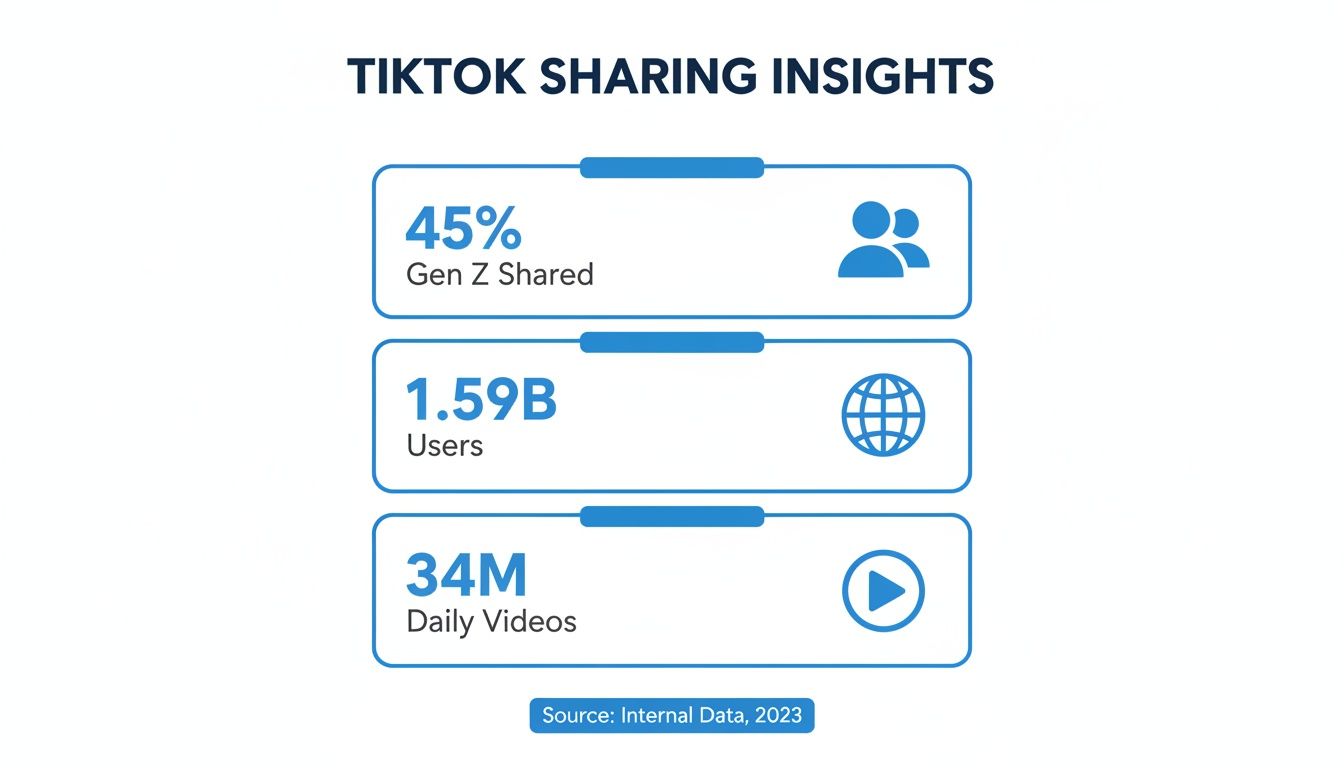
These numbers don't lie. A solid TikTok strategy has to be built on creating content that people genuinely want to pass along. With millions of videos flooding the platform every day, making something shareable is what will make you stand out.
Uploading and Publishing Your First Video
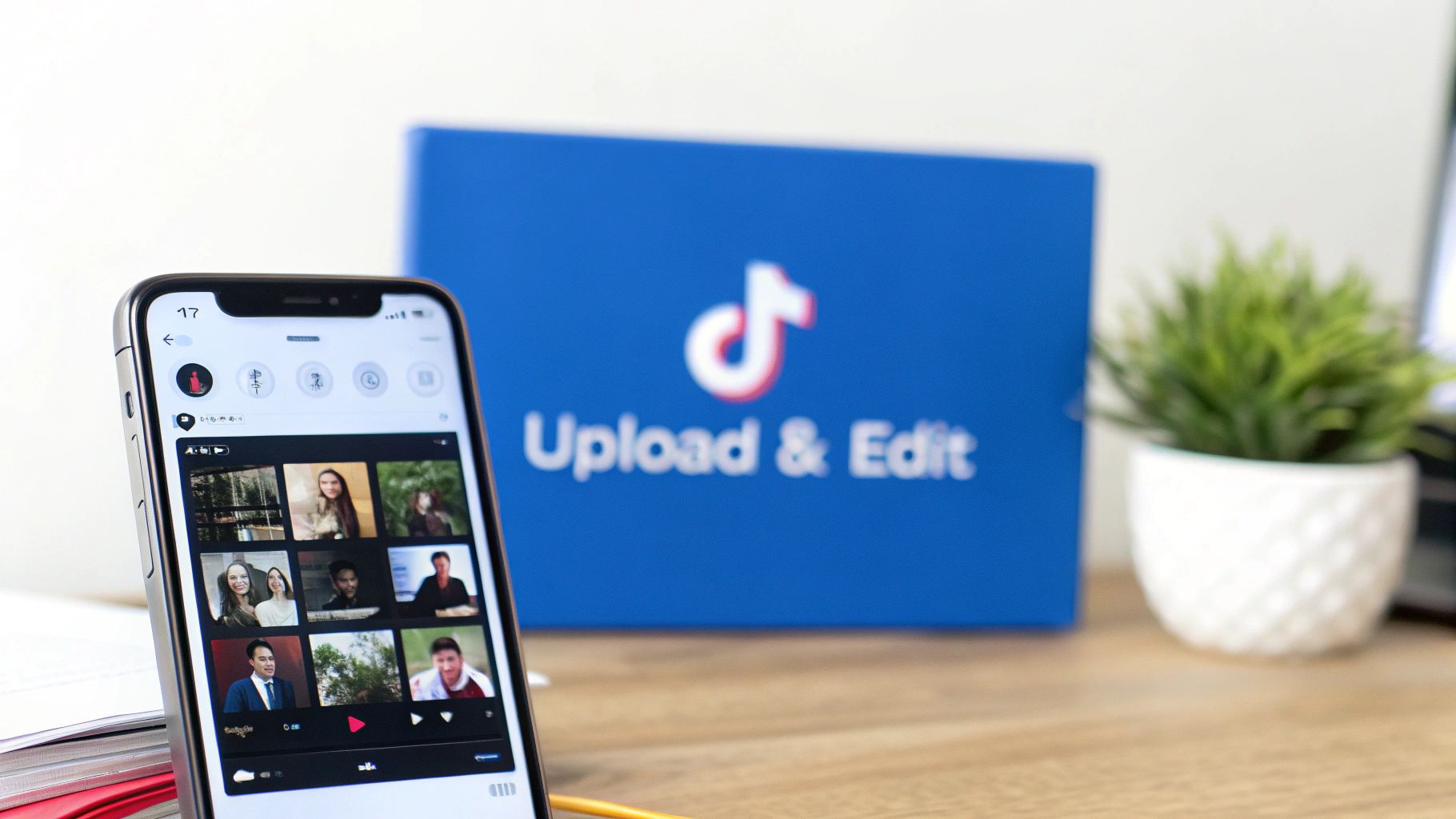
Ready to share your masterpiece? The whole process kicks off with a tap of the big ‘+’ button at the bottom of your TikTok screen. This is your gateway to your phone’s camera roll, where all your pre-recorded magic is stored. Picking the right clip is the first move in learning how to share a video on TikTok.
Once your video is selected, you'll find yourself in TikTok’s built-in editor. This is where you can trim your clips to get the timing just right, layer on some trending audio to help people find your content, or slap on a filter to nail the vibe. Think of it as your personal editing suite, right in your pocket.
Don't just breeze through this part. Text overlays and stickers are more powerful than you think. A killer hook in the first three seconds can be the difference between a scroll and a view, and a well-placed line of text is often the fastest way to deliver it.
Getting It Ready to Publish
After you’ve polished your video, you’ll land on the final screen before it goes live. This is where you write your caption, load it up with relevant hashtags, and decide who gets to see it. A snappy caption paired with a smart mix of hashtags is your best bet for reaching new audiences.
The scale of TikTok is mind-boggling, which is why every little detail matters. With over 1 billion daily video views and 16,000 videos uploaded every minute, you need every advantage to stand out. Polishing your post on this final screen is what helps you cut through the noise. (source)
Before you hit that 'Post' button, you’ll see a few important toggles. Let’s break down the most critical ones.
TikTok Sharing Options on the Publish Screen
Here's a quick look at the toggles you'll see right before your video goes public. Each one plays a big role in how your content gets seen and shared.
| Setting | What It Does | Best For |
|---|---|---|
| Who can watch this video | Controls visibility. Options are Everyone (public), Friends (followers you follow back), or Only Me. | Everyone for maximum reach. Friends for personal content. Only Me to save a draft on your profile. |
| Allow comments | Lets you turn viewer comments on or off. | On for building community and engagement. Off if you're dealing with spam or want more control. |
| Allow Duet and Stitch | Gives others permission to use your video in their own Duets or Stitches. | On if you want a shot at going viral. It's a massive driver of organic reach when others use your content. |
Getting these settings right from the start saves you a headache later. Once you’re happy with everything, you're ready to launch.
Understanding how different apps handle uploads can also give you some perspective. It's interesting to see the different workflows when uploading content to social platforms in general. When you’ve got your settings locked in, just tap 'Post' and your video is officially out in the world. Good luck
Sharing Videos Directly With Others
Sharing a video on TikTok doesn't always mean broadcasting it to your entire follower list. Sometimes you just want to send a funny clip to a friend or get a second opinion on your latest creation before it goes live. This is where direct sharing comes in handy, giving you full control over who sees your video.
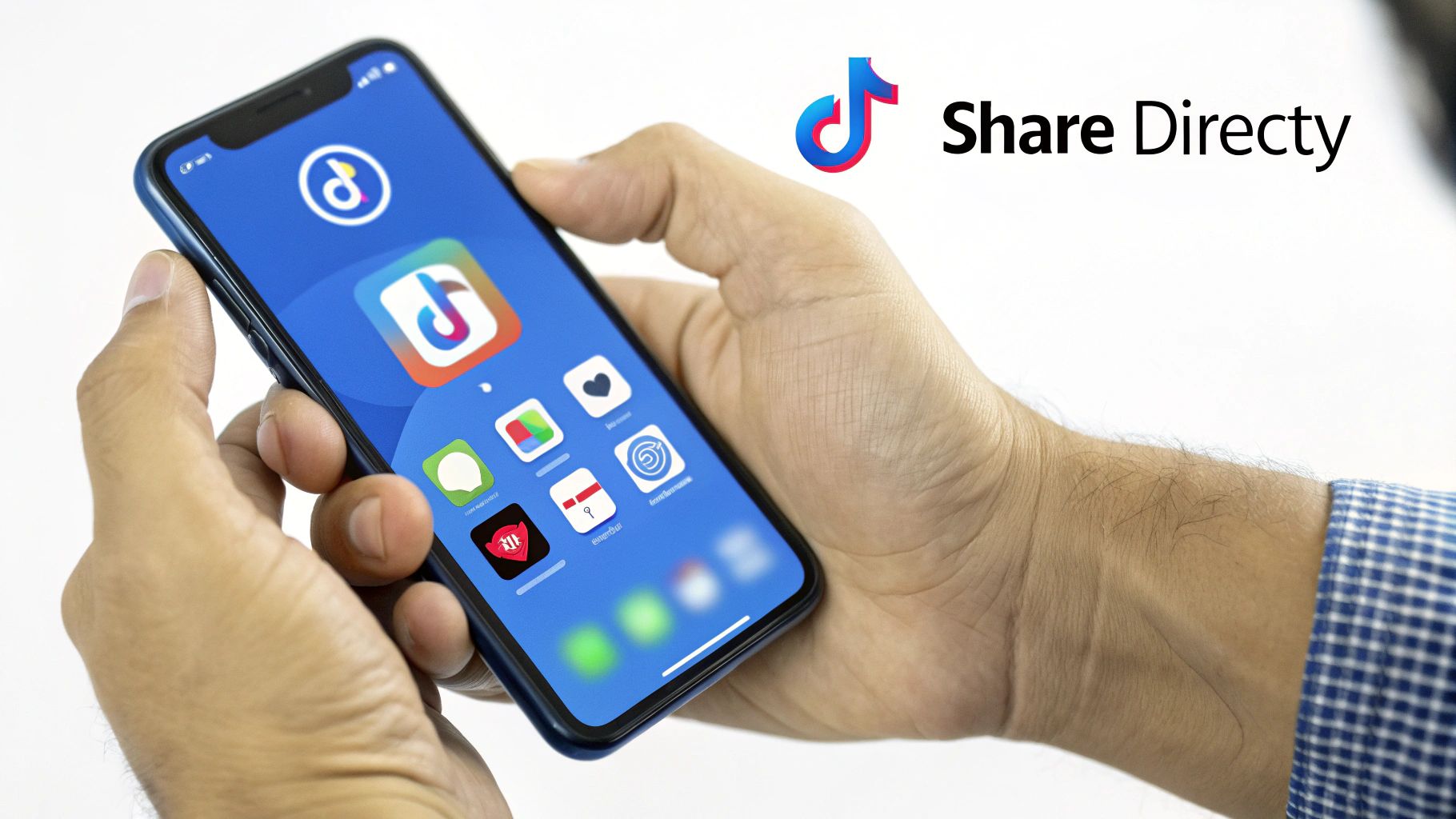
Whether it's your own video or one you stumbled upon on your For You Page, just tap the white arrow icon (the 'Share' button). This opens up a menu loaded with sharing options. You can send it directly to friends on TikTok or pick from a list of other apps like WhatsApp, Instagram, or even a good old-fashioned text message.
This gives you a choice: you can either send just the link to the video or, on some apps, download and send the video file itself. Sending the link is lightning-fast and drives traffic back to the original TikTok. On the other hand, sending the file is great if you want someone to be able to watch it offline. Knowing the difference is a key part of understanding how to share a video on TikTok for any situation.
How to Privately Share a Draft
Here’s a feature I think is criminally underused: sharing a draft before you publish it. This is a total game-changer for creators who want feedback from a trusted friend or collaborator without messing with the algorithm. A second set of eyes can help you catch a typo in your text or suggest a better edit.
To pull this off, you first need to post the video with its privacy set to "Only Me." This basically saves it to a private folder on your profile that nobody else can see.
Once it's posted privately, just do this:
- Head to your profile and tap the lock icon to see your private videos.
- Open the video you want to share.
- Tap the three-dot icon (…) to bring up more options.
- Select "Copy link."
You now have a private, shareable link to your unpublished video. Anyone you send this link to can watch it, but it won’t show up on anyone's For You Page or your public profile. It's the perfect way to get feedback without any premature exposure.
For creators juggling multiple accounts or a high volume of content, automating parts of this process can be a huge time-saver. Learning about automating your TikTok shares can really streamline your workflow, especially if you’re working with a team. It lets you spend more time creating and less time on the manual steps of getting your content out there.
Managing Advanced Sharing and Privacy Controls
Your control over a TikTok video doesn't stop once you hit "Post." Far from it. The platform gives you some surprisingly powerful tools to manage who sees your content and how they interact with it long after it goes live. This is perfect for things like running a weekend promotion and then switching the video to "Friends only" afterward.
To get to these settings, just head over to the video on your profile and tap the three-dot icon (…). Scroll over to "Privacy settings," and you'll find everything you need to dynamically change the audience from "Everyone" to "Friends" or even "Only Me."
Fine-Tuning Interaction Settings
Beyond just who can see your video, you get a say in how they use it. The big ones here are the toggles for Duet and Stitch. These features are the lifeblood of viral trends, and turning them on is like sending an open invitation for other creators to collaborate with your video, which can be a massive boost for visibility.
But you won't always want that. For personal content or a polished brand campaign where you need to keep the message tight, you can easily disable them. This prevents anyone from using your video as a jumping-off point for their own.
A crucial post-publication setting is the ability to turn downloads on or off. Disallowing downloads stops users from saving a clean copy of your video to their device, which gives you a lot more say over where your work gets distributed. It's a must-do for protecting original or exclusive content.
Let’s quickly break down what these key controls do and when you might use them.
TikTok Post-Publication Privacy Settings
This table gives you a clear breakdown of the privacy and interaction controls you can adjust after your video is live, along with some real-world scenarios for each.
| Control Setting | Function | Strategic Use Case |
|---|---|---|
| Who can watch this video | Changes audience visibility between Everyone, Friends, or Only Me. | Making a promotional video public for a limited time, then switching it to "Friends" to create exclusivity. |
| Allow Duet / Stitch | Grants or revokes permission for others to use your video in their content. | Enabling it to encourage participation in a challenge you started; disabling it for a polished, final brand message. |
| Allow downloads | Determines if users can save the video file directly to their device. | Disabling downloads to protect exclusive content or a sneak peek that you don't want reposted elsewhere. |
Getting a handle on these advanced controls is what separates a casual poster from someone with a real strategy. It ensures your sharing is not just effective but also secure.
Creating Videos People Actually Want to Share
Knowing how to share a TikTok is one thing. Creating a video that people actually want to share? That’s the real game. Shareability isn't some happy accident—it’s the direct result of a smart creative strategy.
Your first job is to hook viewers in the first three seconds. This is non-negotiable on a fast-scrolling app like TikTok. Hit them with an unexpected visual, a bold text overlay, or a question that piques their curiosity. You have to give them a reason to stop dead in their tracks.
Another huge driver for shares is jumping on trending audio. Using a popular sound does more than just make your video feel current; it plugs your content straight into a massive, ongoing conversation. The algorithm loves this and often rewards videos using popular sounds with an extra push.
Crafting Share-Worthy Content
When it comes down to it, the videos that get shared the most connect with viewers on a deeper level, either emotionally or practically. Content that’s relatable, genuinely funny, or incredibly useful has a built-in reason to be passed along. People see a piece of themselves in a skit or learn a cool new trick and immediately think, "Oh, [friend's name] would love this."
To really nail this, you'll want to learn how to film TikTok videos that go viral.
Actively prompt your audience to share. A simple call-to-action can dramatically increase your share count. Instead of just hoping they do it, tell them why they should.
Work a direct call-to-action (CTA) into your captions or pop it up as on-screen text. It feels natural and gives people that little nudge they need.
Try something like:
- "Send this to the friend who always does this."
- "Tag someone who needs to hear this today."
- "Share this with your group chat if you agree."
These simple prompts remove any guesswork and plant the idea of sharing directly in your viewer's mind. For a complete walkthrough of the entire creation process, check out our guide on how to make TikTok videos from start to finish.
Frequently Asked Questions About TikTok Sharing
Once you get the hang of sharing videos on TikTok, you’ll probably run into a few specific questions. Let's tackle some of the most common ones I hear all the time.
Can I See Who Shared My TikTok Video?
This is a big one, and the short answer is no. Unfortunately, TikTok doesn't give you a list of the specific users who shared your video. You can see the total share count right on the video and in your analytics, but the individual accounts are kept private.
The best way I’ve found to track this is to just keep an eye on your view count. If you see a sudden, massive spike in views, it’s a good sign your video is being shared around—even if you can’t see exactly who’s doing it. One exception: if someone shares your video to their Instagram Story and tags you, you’ll get a notification there.
Why Can’t I Share a Certain Video on TikTok?
Ever hit a video where the share button is missing or grayed out? It’s usually for a few straightforward reasons. Knowing these is just part of learning how to share a video on TikTok respectfully.
- Creator's Privacy Settings: The original creator might have turned off sharing. They can also disable Duets, Stitches, or downloads if they want to keep tight control over their content.
- Private Account: You can't share videos from a private account. It’s a core privacy feature to protect the user.
- App Glitch: Sometimes, it’s just a bug. The classic “turn it off and on again” approach often works—try restarting the TikTok app and see if that fixes it.
How Do I Share a TikTok Without the Watermark?
When you download a video, TikTok automatically slaps its watermark on it, crediting the original creator. This is baked right into the app's design to make sure people get credit for their work when it travels across other platforms.
There is no official, in-app feature to remove the watermark. You might stumble across third-party apps or websites claiming they can do it, but be careful. Using them can be risky, might not even work, and could get you in trouble for violating TikTok's terms of service. It’s best to just see the watermark for what it is: a built-in credit system that supports other creators.
Ready to create shareable content without the hassle? ShortsNinja uses AI to help you generate and schedule dozens of engaging faceless videos for TikTok in minutes, so you can focus on growing your audience. Get started today and see how easy content creation can be at https://shortsninja.com.