
Sure, you can just copy a YouTube link and slap it into a Facebook post. Done. But if you actually want people to watch it and engage, that's the absolute worst way to do it. The best practice is to upload the video file directly to Facebook.
Why Sharing YouTube Videos on Facebook Still Matters
Before we get into the how, let’s talk about the why. A lot of people see cross-posting as just another box to check, but it's a strategic move that taps into two completely different digital worlds.
Think of it this way: YouTube is a search engine. People go there with a purpose, actively looking for something. Facebook, on the other hand, is a discovery platform. Your content finds them while they’re scrolling through photos of their cousin's new baby.
That simple difference is what makes posting your videos correctly on Facebook so powerful. You're not just dropping a link; you're putting your content in front of a massive, and often entirely new, audience.
Tapping Into a Discovery-Driven Audience
On YouTube, someone is typing in "how to fix a leaky faucet" or "best travel tips for Japan." They are on a mission.
But on Facebook? That same person is just killing time, scrolling their feed. Your video pops up between a friend's vacation pics and a local news story. This is your chance to grab the attention of someone who wasn't even looking for you.
Your content's journey doesn't have to end on YouTube. By bringing it to Facebook, you transform it from a destination-only asset into a piece of discoverable media that can go viral in a completely different context.
This approach is a fundamental part of a solid social media marketing strategy, making sure all your hard work gets seen by as many people as possible.
The Power of Facebook's Platform
Let's be real: ignoring Facebook is like leaving a massive chunk of your potential audience out in the cold. The numbers don't lie. A whopping 81% of marketers use Facebook to distribute their content, way more than the 62% who use YouTube for the same thing.
Even better, video posts on Facebook get a 135% higher organic reach than photo posts. It's an incredibly effective way to get eyeballs on your work without paying for ads. By connecting your YouTube efforts with Facebook's native video, you create a distribution engine that works for you 24/7.
Native Uploads vs. Link Sharing: Which Wins?
When you’re ready to post your YouTube video on Facebook, you hit a fork in the road. Do you upload the video file directly—a native upload—or just drop the YouTube link? This choice seems small, but it dramatically changes how your video performs. The answer really comes down to understanding what Facebook wants.
Simply put, Facebook’s goal is to keep people on Facebook. When you upload a video natively, it’s a seamless experience. The video autoplays right in the feed, catching eyes without a single click. This keeps users scrolling and engaged on their platform, which is exactly what the algorithm is built to reward.
On the other hand, sharing a YouTube link is like putting up an exit sign. It asks people to leave Facebook and go somewhere else. Since you’re sending traffic straight to a competitor (YouTube), Facebook’s algorithm throttles the post’s reach. Fewer people will ever see it.
The Clear Advantage of Native Uploads
Put yourself in a user’s shoes for a second. As they scroll their feed, a native video starts playing silently, its motion drawing them in. A YouTube link? That’s just a static thumbnail. It requires a conscious decision to click, leave the app, and wait for a new page to load.
That tiny bit of friction is often all it takes for someone to scroll right past your content. The name of the game is making it effortless for people to watch your video, and native uploads do that perfectly.
This infographic breaks down the core difference in how people discover content on each platform.

The key takeaway here is to play to each platform's strengths. Upload natively to Facebook to get discovered, and keep your video on YouTube to capture search traffic.
The Data Backs It Up
This isn’t just a theory; the data proves it out. When you look at the engagement numbers, the difference is staggering.
A native Facebook video gets more views, more comments, and way more shares than a post with a YouTube link. It's not a small bump—it's a total game-changer for your visibility.
The statistics are pretty compelling. In fact, native Facebook videos get a jaw-dropping 1055% more shares than posts that link out to YouTube. For any creator trying to get their work seen, uploading the video file directly is the only way to go if you want to maximize shares and engagement. You can dig into more of these video statistics and see the full breakdown here.
To make the differences crystal clear, here’s a direct comparison of the two methods.
Native Upload vs. Link Sharing on Facebook
| Feature | Native Facebook Video | YouTube Link Share |
|---|---|---|
| User Experience | Seamless autoplay in the feed | Static thumbnail, requires a click to leave Facebook |
| Algorithm Favorability | High; keeps users on the platform | Low; sends traffic to a competitor |
| Typical Reach | Significantly higher | Organically limited by the algorithm |
| Engagement | Much higher views, shares, and comments | Lower across all metrics |
| Call to Action | Customizable within the Facebook post | Primarily drives traffic to a YouTube channel |
The table really tells the story. For visibility and engagement on Facebook, native video is the undisputed winner.
So, choosing how to post your YouTube video on Facebook isn't just a technical decision; it's a strategic one. By opting for a native upload, you're playing by Facebook's rules and aligning your content with its goals. The result? Better reach, higher engagement, and ultimately, more people watching what you've worked so hard to create.
How to Natively Upload Your Video to Facebook
Alright, so you want the best possible results from your Facebook videos? You've got to upload them natively. This is the secret sauce for getting that sweet, sweet autoplay in the feed and a friendly nod from the Facebook algorithm.
It takes a couple of extra minutes compared to just slapping a YouTube link in a post, but the boost in reach and engagement is absolutely worth it.
First things first, you need the actual video file. If you don't have it saved on your computer, no sweat—you can just grab it from your own YouTube channel.
- Pop over to your YouTube Studio.
- Click on the Content tab in the left-hand menu.
- Find the video you want, hover your mouse over it, and click the three-dot icon (Options).
- Hit Download. The MP4 file will save right to your computer.
Easy enough, right? Now that you've got the file, the rest of the magic happens on Facebook.
Uploading from Your Desktop
Using a computer gives you way more control and options than mobile, so I always recommend it. Log into Facebook and go to the Page or profile where you're posting.
Look for the familiar "What's on your mind?" post box. From there, click the Photo/Video icon, which will bring up your computer's file browser. Find that MP4 you just downloaded and select it.
You'll see the video start to upload and process. This is your prime opportunity to get all the details right—the stuff that makes people actually stop scrolling.
Seriously, don't just upload the video and hit "Publish." The steps you take while it's processing are what separate a dead-on-arrival post from one that takes off. A good title, description, and thumbnail aren't optional.
Choosing the Perfect Thumbnail
As your video processes, Facebook will throw a few random frames at you to use as a thumbnail. My advice? Never let Facebook choose for you. A killer thumbnail is arguably the single most important factor in getting someone to click play.
You’ve got two main choices here:
- Upload Image: This is your best bet, hands down. Create a custom thumbnail (I stick to 1280×720 pixels) that's bright, clear, and has some text that makes people curious. If you already made one for YouTube, you can often just use that same one here.
- Choose from video: If you’re in a rush, you can scrub through the video's timeline and pick a specific frame. Try to find a moment with a lot of action or an expressive face that really sums up the video's vibe.
Once you've locked in a great thumbnail, just add a punchy title and a description that gets people talking. That's it! You're ready to share your masterpiece.
Optimize Your Post for Maximum Engagement
Getting your video uploaded is only half the battle. Now comes the fun part: making sure people actually stop scrolling and watch it. How you package your video is just as critical as the content itself. This is where you switch from just uploading to strategically driving views.

A fantastic video paired with a weak caption will get completely lost in the noise of the Facebook feed. Your mission is to be a thumb-stopper, and that all starts with a killer opening line. Try asking a question, dropping a surprising statistic, or teasing the single most valuable piece of info inside the video.
Craft a Magnetic Caption and CTA
Think of your caption as the appetizer. It should be conversational and give a little context, but keep it tight. Most people will never click that "See more" link, so you need to make your point fast.
A strong caption really only needs to do three things:
- Hook 'em: Grab their attention within the first couple of lines.
- Explain: Briefly tell them what the video is about and why they should care.
- Direct them: Give a clear Call-to-Action (CTA) telling them exactly what to do next.
A lazy CTA like "check it out" isn't going to cut it. Get specific. Do you want them to "Share your own tips in the comments below," "Tag a friend who needs this," or "Click the link in our bio for the full guide"? A clear, direct command makes it far more likely they'll actually do it. Really understanding how captions improve Facebook video engagement is a game-changer here.
Don’t just post your video; present it. Think of your caption and thumbnail as the packaging. If the packaging isn't appealing, no one will ever see the great product inside.
Use Hashtags and Tags Strategically
Hashtags aren't just for Instagram anymore. On Facebook, they act like filing labels, helping your video show up in front of people who don't even follow your page yet. A good rule of thumb is to use 3-5 relevant hashtags. Mix a broad one (#VideoMarketing) with more niche, specific ones (#RealEstateVideoTips) to cover your bases.
Tagging is another underrated tool for boosting your reach. If your video mentions another company, a fellow creator, or even a physical location, tag their official Facebook page. They'll get a notification, which often encourages them to share your post with their audience, giving you an instant visibility bump.
To zoom out and see the bigger picture of how video fits into your overall plan, it's worth diving into broader social media video marketing strategies. This is how you turn a simple video upload into a genuine asset that works for your brand.
Adapt Your Content for Reels and Stories
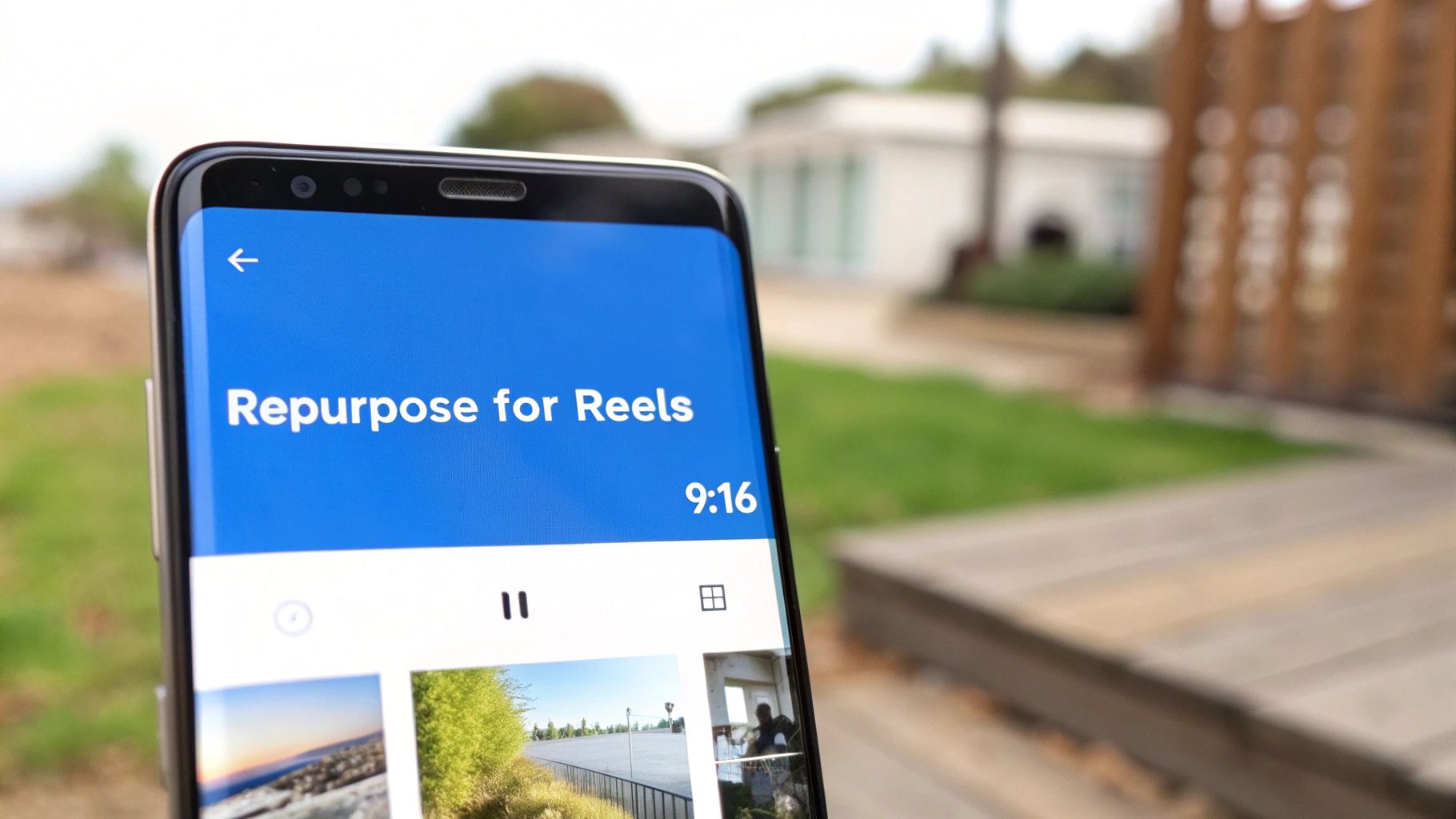
Let's be real: just dumping your standard, 10-minute horizontal YouTube video onto Facebook isn't going to cut it anymore. If you want to see any real traction when you post a YouTube video to Facebook, you have to play the game—and right now, that means embracing short-form, vertical content like Reels and Stories.
This isn't just about trimming down your video. It's about completely re-imagining its best moments for a totally different viewing experience. The goal is to hunt down the most impactful 60-second clip from your long-form video and reframe it for the vertical screen. Think about turning a detailed product review into a rapid-fire Reel that just highlights the top three features. You're capturing a completely different, fast-scrolling audience this way.
Editing for a Vertical World
Adapting your content means you need to start thinking vertically. Your main subject has to be centered to fit the 9:16 aspect ratio used by Reels and Stories. Text overlays are also a non-negotiable, since so many people watch videos with the sound off. You'll want to add bold, clear captions that either summarize key points or ask a question to get people engaged.
- Find the Hook: Go through your YouTube video and pinpoint that one powerful moment—a surprising fact, a key takeaway, or a dramatic reveal. That's your clip.
- Add Value with Text: Use text on the screen to give context or call out the most important info. This makes your Reel easy to understand, even on mute.
- Keep it Punchy: Your Reel needs to get straight to the point. You have about three seconds to stop the scroll and grab someone's attention.
The shift to short-form video is massive and undeniable. Video content now makes up 60% of the time users spend on Facebook, and Reels are the main force behind that growth. In fact, Facebook Reels are now pulling in over 200 billion views every single day, which shows just how much potential there is for repurposed content. You can dig into more of these social media video trends to see the full picture.
Repurposing isn't just a time-saver. It’s about meeting your audience where they are, in the format they actually prefer. A single YouTube video can be sliced into a powerful Reel, a compelling Story, and more—with each piece reaching a new segment of viewers.
This strategy goes way beyond just Facebook, too. The same rules—vertical editing, quick cuts, and high-impact clips—are perfect for other platforms. The process to post a YouTube video to Instagram follows a very similar, and very effective, formula.
Answering Your Top Questions About Sharing YouTube Videos
Even the most seasoned creators have questions when sharing their work on new platforms. When you post a YouTube video to Facebook, a few common worries tend to crop up. Let's clear the air on the big ones so you can post with confidence.
Will I Get a Copyright Strike for This?
Nope, not for your own original content. You own the rights to the video you created, so sharing it on Facebook is perfectly fine.
The only time you might run into trouble is with copyrighted music. If you used a popular song you don't have the license for, Facebook's Rights Manager system might flag the audio. To play it safe, always stick with royalty-free music.
Why Does My Video Look Blurry on Facebook?
This is a classic problem, and it all comes down to compression. Facebook compresses every video uploaded to its platform to save space, and sometimes that can soften the image.
The best way to fight this is to give Facebook the best possible file to start with. Always upload your video in the highest resolution you have—1080p or 4K is ideal. Most video editors also have a "web-optimized" export setting that can help keep things looking sharp.
Think of your video file like a photograph. You want to start with the highest quality original you can, because every time it gets compressed or saved, it loses a tiny bit of detail.
And a quick pro-tip: If you manage a business page, you can use the Meta Business Suite to schedule your video posts in advance.
Ready to create stunning videos without the hassle? ShortsNinja uses AI to turn your ideas into high-quality, engaging content for TikTok, YouTube, and Instagram in minutes. Start creating with your free trial video today.